PNG vs JPG vs WebP: Which Image Format Should You Use?
Choosing the right image format can mean the difference between a crisp, professional-looking image and a blurry, oversized file that slows down your website. PNG, JPG, and WebP each have strengths, and picking the right one depends on what you are doing with the image.
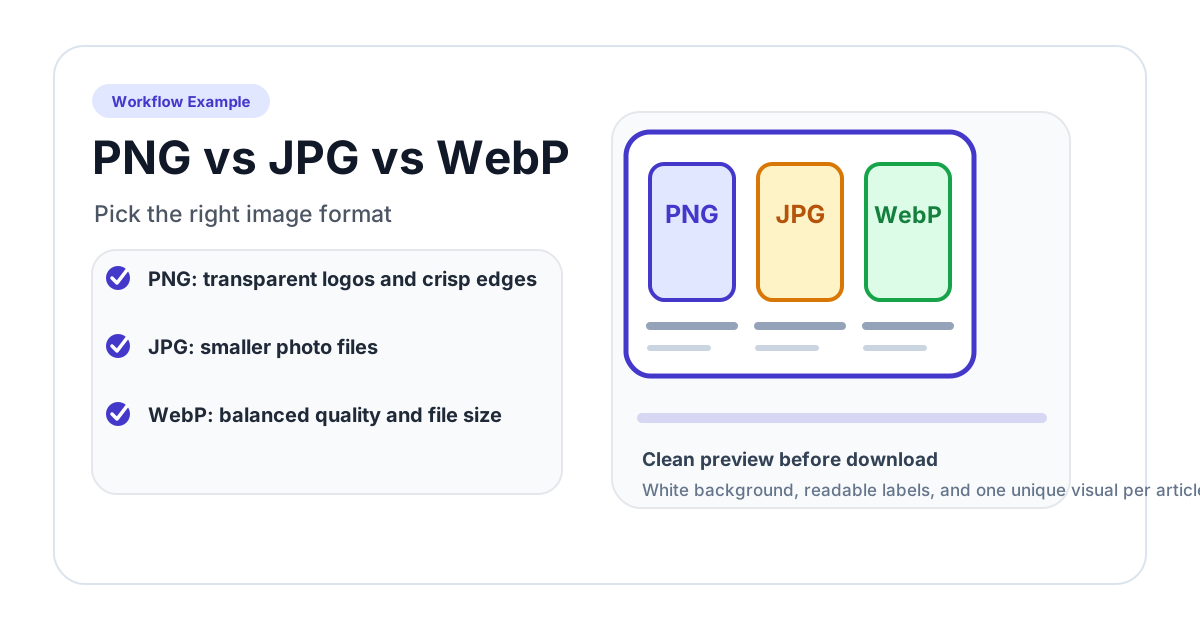
This guide breaks down the differences so you can make the right choice every time.
Quick Comparison
| Feature | JPG (JPEG) | PNG | WebP |
|---|---|---|---|
| Compression | Lossy | Lossless | Both |
| Transparency | No | Yes | Yes |
| Animation | No | No (APNG exists but rare) | Yes |
| File Size | Small | Large | Smallest |
| Quality | Good for photos | Perfect for graphics | Excellent for both |
| Browser Support | Universal | Universal | All modern browsers |
| Best For | Photos, social media | Logos, screenshots, circle crops | Web optimization |
JPG (JPEG): The Photo Standard
JPG is the most widely used image format in the world. Every camera, phone, and image editor supports it.
How JPG Works
JPG uses lossy compression — it permanently removes some image data to reduce file size. The amount of data removed depends on the quality setting (usually 1-100). At high quality (80-100), the loss is barely visible. At low quality (below 50), compression artifacts become obvious.
When to Use JPG
- Photographs — JPG handles the millions of colors in a photo efficiently
- Social media uploads — Most platforms expect and optimize for JPG
- Email attachments — Small file sizes make JPGs easy to send
- Web backgrounds — When you need a full-color image without transparency
When NOT to Use JPG
- Images with transparency — JPG does not support transparent backgrounds at all. If you circle crop an image and save as JPG, the area outside the circle turns white
- Text and line art — JPG compression creates visible artifacts around sharp edges
- Logos and icons — The lossy compression blurs crisp edges
- Images you will re-edit — Each time you save a JPG, quality degrades slightly
PNG: The Quality Keeper
PNG was designed to be a better alternative to GIF, and it excels at preserving image quality with full transparency support.
How PNG Works
PNG uses lossless compression — no data is lost when the file is saved. The image you see is exactly what was saved, pixel for pixel. This makes PNG files larger than JPGs, but the quality is perfect.
When to Use PNG
- Circle-cropped images — The transparent background requires PNG. This is why Circle Crop Image exports as PNG by default
- Logos and icons — Crisp edges stay crisp
- Screenshots — Text remains sharp and readable
- Graphics with few colors — PNG compresses simple graphics very efficiently
- Any image needing transparency — PNG supports full alpha channel (256 levels of transparency)
- Images for further editing — No quality loss when saving repeatedly
When NOT to Use PNG
- Large photographs — A PNG photo can be 5-10x larger than the same image as JPG, with minimal visible quality difference
- Web pages where load speed matters — The larger file size slows down page loading
- Sharing photos casually — The file might be too large for messaging apps
WebP: The Modern Choice
WebP was developed by Google as a modern image format that combines the best of JPG and PNG.
How WebP Works
WebP supports both lossy and lossless compression. Lossy WebP produces files 25-34% smaller than JPG at equivalent quality. Lossless WebP produces files 26% smaller than PNG. It also supports transparency and animation.
When to Use WebP
- Website images — Smaller files mean faster page loads
- Web applications — When you control the platform and know browsers support it
- Progressive web apps — Optimized for mobile data usage
- Any web content — It is essentially a better JPG and PNG combined
When NOT to Use WebP
- Print design — Print workflows typically require JPG, PNG, or TIFF
- Sharing with others — Some older software and email clients do not support WebP
- Archival storage — PNG or TIFF are more universally supported for long-term archival
Choosing by Use Case
For Profile Pictures and Avatars
Use PNG if you need a transparent background (circle or oval crop). Use JPG if the platform will add its own background anyway and you want a smaller file.
For Social Media Posts
Use JPG at quality 85-95. The platform will recompress your image anyway, so starting with a high-quality JPG gives the best final result. Avoid PNG for social media photos — the large file size provides no benefit since the platform will convert it to JPG.
For Website Design
Use WebP as the primary format with JPG as a fallback. Most modern content delivery networks (CDNs) can automatically serve WebP to supported browsers and JPG to others.
For E-commerce Product Images
Use PNG for product images on white or transparent backgrounds. Use JPG for lifestyle and editorial product photography.
For Documents and Screenshots
Use PNG. Text and UI elements look terrible with JPG compression artifacts. PNG preserves every pixel exactly as captured.
For Printing
Use PNG or TIFF for print. JPG compression artifacts can become visible when printed at high resolution. If you must use JPG, save at quality 100.
File Size Comparison
Here is a real-world comparison of the same 1920×1080 photograph saved in each format:
| Format | Setting | File Size | Quality |
|---|---|---|---|
| JPG | Quality 50 | ~150 KB | Visible artifacts |
| JPG | Quality 85 | ~350 KB | Good |
| JPG | Quality 100 | ~800 KB | Excellent |
| PNG | Default | ~3,500 KB | Perfect |
| WebP | Lossy (85) | ~250 KB | Good |
| WebP | Lossless | ~2,000 KB | Perfect |
For a simple graphic (logo, icon) with few colors, the sizes shift dramatically — PNG can be smaller than JPG because it compresses flat colors efficiently.
Related Tools
- Circle Crop — Exports as PNG with transparent background
- Merge Images — Combine images in various formats
- Color Inverter — Invert colors and export in your preferred format
Frequently Asked Questions
Can I convert between formats without losing quality?
Converting from PNG to JPG loses quality (lossless to lossy). Converting from JPG to PNG does not improve quality — the data already lost by JPG compression cannot be recovered. Converting to WebP from either format can reduce file size.
Why is my PNG file so much larger than the same image as JPG?
Because PNG is lossless — it preserves every pixel exactly. JPG achieves smaller sizes by discarding data that is "less noticeable" to the human eye. For photographs, this tradeoff is usually worth it.
Does WebP work in Safari?
Yes. Safari has supported WebP since Safari 14 (macOS Big Sur, iOS 14). All major browsers now support WebP.
What about AVIF and HEIF?
AVIF is an even newer format with better compression than WebP, but browser support is still catching up. HEIF (used by Apple) is great for photos on Apple devices but has limited web support. For most use cases today, WebP is the safe modern choice.
Should I convert all my website images to WebP?
For new images, yes. For existing images, convert them if your build process or CDN can handle it. Always provide a JPG or PNG fallback for maximum compatibility.
Related image editing guides
How to Blur an Image Online for Free (Full & Partial Blur Guide)
Learn how to blur an image online for free. Apply full blur, background blur, or blur specific areas to protect privacy or create depth effects.
Read guideHow to Flip an Image Online: Mirror Horizontally or Vertically
Learn how to flip an image horizontally or vertically online for free. Mirror any photo instantly — no software installation or signup required.
Read guideHow to Rotate an Image Online: 90°, 180° or Any Custom Angle
Learn how to rotate an image online for free — 90°, 180°, 270°, or any custom angle. Fix sideways photos and adjust orientation instantly in your browser.
Read guide