Circle vs Square Profile Pictures: Which Platforms Use What?
Some platforms display your profile picture as a circle, others as a square, and a few use rounded squares. Knowing which shape each platform uses helps you crop and frame your image so it looks exactly right — no unwanted cutoffs, no awkward framing.
Which Shape Does Each Platform Use?
Circle Profile Pictures
The majority of modern platforms display profile pictures as circles:
- Twitter / X
- TikTok
- YouTube
- Discord
- Telegram
- Microsoft Teams
- Zoom
- Twitch
- GitHub
- Xbox
- Google (all services)
Square Profile Pictures
A smaller number of platforms use square or nearly square display:
- Steam (slightly rounded)
- PlayStation
- Stack Overflow
- Gravatar (used across many websites)
- Some WordPress themes
- Older forum software
Rounded Square Profile Pictures
A middle ground between circle and square:
- Slack
- Apple (iMessage, App Store developer profiles)
- Some mobile app marketplaces
Why Do Most Platforms Use Circles?
The shift from square to circle profile pictures happened gradually during the early-to-mid 2010s. There are several reasons:
Circles Feel More Personal
Research in visual psychology suggests that rounded shapes feel friendlier and more approachable than sharp-edged shapes. For social platforms built around human connection, circles create a warmer feel.
Circles Focus Attention
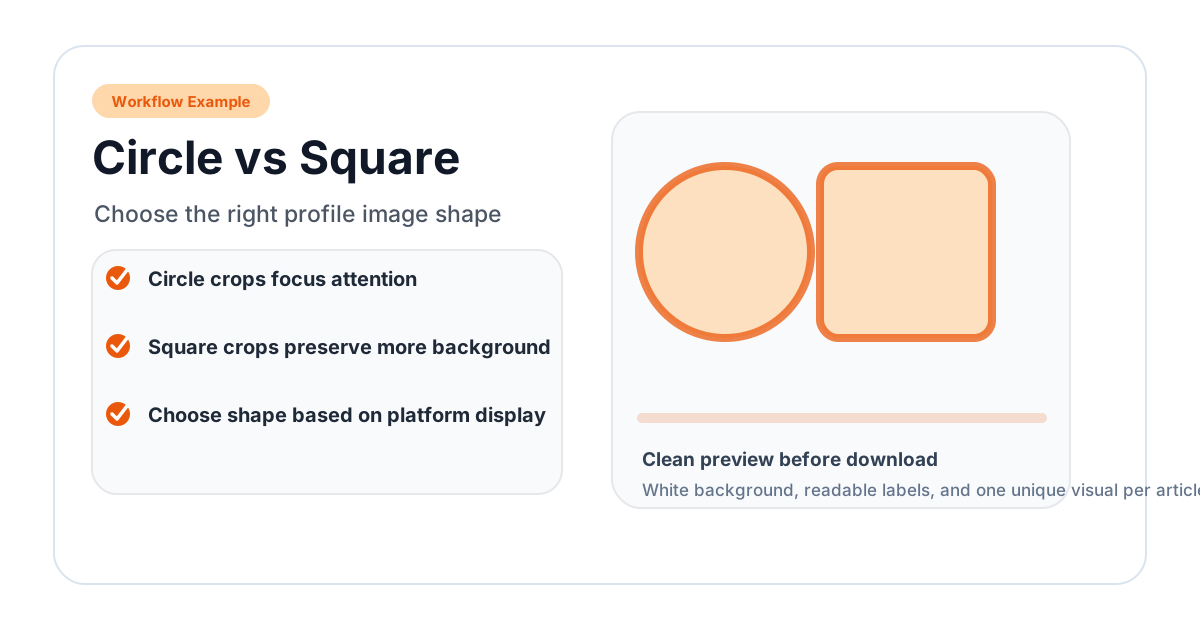
A circle naturally draws the eye to the center of the image — exactly where your face should be. The rounded edge creates a natural frame that eliminates distracting corners.
Circles Save Visual Space
In a list of users (chat sidebar, followers list, comment threads), circles take up less visual space than squares while still being clearly recognizable. The removed corners create natural breathing room between adjacent profiles.
Circles Stand Out from Other UI Elements
Most UI elements (buttons, cards, images, text blocks) are rectangular. Circular profile pictures immediately stand out as "this represents a person" — it is a strong visual signal.
Why Do Some Platforms Still Use Squares?
Squares Show More of the Image
A square displays 100% of the cropped area. A circle inscribed in the same square only shows about 78.5% of the pixels. For platforms where the avatar might contain detailed artwork (like Steam gaming avatars), the extra visible area matters.
Squares Align Better in Grids
On platforms with rigid grid layouts (like some forum software), squares tile perfectly without gaps. Circles leave small gaps between them.
Legacy and Consistency
Some platforms adopted square avatars early and have kept them for consistency. Changing the shape would break existing user avatars that were cropped for a square display.
How to Prepare Your Image for Both
Since you might use the same source image across platforms, here is how to prepare it:
Step 1: Start with a Square Crop
Begin by cropping your image to a 1:1 square ratio using the Square Crop Image tool. Center your face or subject in the middle of the square. This square crop works directly on square-display platforms.
Step 2: Check the Circle Version
Open the Circle Crop Image tool and see how the same image looks when cropped to a circle. Make sure nothing important is cut off by the circular framing — the four corners of the square will be removed.
Step 3: Adjust If Needed
If the circle crop cuts off something important (the top of your head, part of a logo), you have two options:
- Zoom out — Include more of the image so the subject fits comfortably within the circle
- Reposition — Move the subject to the exact center
The Safe Zone
Imagine a circle inscribed within your square image. Everything inside that circle is visible on all platforms. Everything in the four corners outside the circle is only visible on square-display platforms.
Design your image so that all critical content (face, logo mark, key text) stays within the inscribed circle. Less important content (background elements, extended graphics) can extend into the corners.
Platform-Specific Cropping Tips
For Circle Platforms
- Center your face in the exact middle of the frame
- Leave 10-15% margin above your head
- Use the PFP Cropper to preview the circular result
- Export as PNG with transparent background if you need transparency
For Square Platforms
- You have more room to work with — the full frame is visible
- Off-center compositions can work well in squares
- Consider how the corners add context (office background, environment)
- The Square Crop tool locks the aspect ratio to 1:1
For Rounded Square Platforms
- Rounded squares clip the extreme corners but leave more visible than circles
- Treat it like a square crop but keep important elements slightly away from the corners
- The Round Corners tool can help you preview this shape
Common Mistakes
-
Designing only for circles, then using on square platforms — The image may look too tightly cropped with empty space in the corners
-
Designing for squares, then using on circle platforms — Important elements in the corners get cut off
-
Ignoring the size difference — A profile picture that looks great at 400×400 might be displayed at 32×32. Always test at the smallest likely display size
-
Using text that depends on shape — If your avatar contains text that wraps near the edges, it may be partially hidden on circle platforms
Related Tools
- Circle Crop — Crop images into a circle for circle-display platforms
- Square Crop — Crop images into a perfect square
- PFP Cropper — Profile picture cropper for social media
- Round Corners — Preview rounded square crops
Frequently Asked Questions
Can I use the same image for both circle and square platforms?
Yes, and you should. Start with a square image where the important content is centered within an inscribed circle. This way it works perfectly on both circle and square platforms.
Which shape is better for a professional headshot?
Circles are more common on professional platforms (LinkedIn, Google Workspace, Zoom), so optimize for circles. Make sure your headshot is centered and well-framed within a circular crop.
Will platforms ever switch from circles to squares (or vice versa)?
Platforms occasionally change their avatar display shape. Twitter switched from square to circle in 2017. It is always best to have your image ready for both shapes.
How do I make a perfect square from a non-square photo?
Use the Square Crop Image tool to crop any rectangular photo to a 1:1 aspect ratio. Then check how it looks as a circle using Circle Crop.
Do animated GIFs work with both shapes?
Yes. Animated GIFs are cropped to whatever shape the platform uses, just like static images. However, only a few platforms support animated profile pictures (Discord Nitro, Twitter, Steam).
Related image editing guides
PNG vs JPG vs WebP: Which Image Format Should You Use?
Understand the differences between PNG, JPG, and WebP image formats. Learn when to use each format for web design, social media, printing, and more.
Read guideHow to Blur an Image Online for Free (Full & Partial Blur Guide)
Learn how to blur an image online for free. Apply full blur, background blur, or blur specific areas to protect privacy or create depth effects.
Read guideHow to Flip an Image Online: Mirror Horizontally or Vertically
Learn how to flip an image horizontally or vertically online for free. Mirror any photo instantly — no software installation or signup required.
Read guide