How to Square Crop an Image for Instagram and Social Media
Square images are everywhere on social media. Instagram built its entire brand around the square format, and even though it now supports other aspect ratios, the 1:1 square remains the most iconic and widely used shape for social media posts, product photos, and thumbnails.
Why Square Crop?
Instagram Posts
Instagram's grid displays posts as squares regardless of the original aspect ratio. If you upload a rectangular image, Instagram crops it to a square for the grid view. By cropping to a square beforehand, you control exactly what appears in the grid — no surprises.
Facebook and Twitter/X
Both platforms display link previews and some post types as squares or near-squares. A pre-cropped square image ensures your content looks intentional and professional.
Product Photography
E-commerce platforms like Etsy, Amazon, and Shopify recommend square product photos. They display consistently in product grids and look clean in search results.
Thumbnails
Thumbnails for videos, articles, and apps are often square. A square crop ensures the most important part of the image is visible in the thumbnail.
Profile Pictures
Some platforms (like Slack and older forum software) use square profile pictures instead of circles. Having both a square and circular version of your profile photo covers all bases.
How to Square Crop an Image Online
Step 1: Open the Square Crop Tool
Go to the Square Crop Image tool. It is free and works in any browser.
Step 2: Upload Your Image
Drag and drop or click to upload. The tool accepts JPG, PNG, WebP, and other common formats.
Step 3: Position the Crop
A square overlay appears on your image. Adjust it by:
- Dragging the square to the area you want to keep
- Resizing to crop a larger or smaller area
- The aspect ratio stays locked at 1:1
Step 4: Download
Click download to save your perfectly square image.
Standard Square Sizes for Social Media
Different platforms work best with specific square dimensions:
| Platform | Recommended Square Size | Use Case |
|---|---|---|
| Instagram Post | 1080×1080 px | Feed posts |
| Instagram Story Highlight | 161×161 px | Story highlight covers |
| Facebook Post | 1200×1200 px | Feed posts |
| Twitter/X Post | 1200×1200 px | Image posts |
| LinkedIn Post | 1200×1200 px | Feed posts |
| 1000×1000 px | Square pins | |
| Etsy | 2000×2000 px | Product listings |
| Amazon | 2000×2000 px | Product images |
When in doubt, 1080×1080 is a safe default that works well on most platforms.
Square Crop vs. Other Aspect Ratios
| Aspect Ratio | Shape | Common Use |
|---|---|---|
| 1:1 | Square | Instagram grid, product photos |
| 4:5 | Portrait rectangle | Instagram portrait posts |
| 16:9 | Wide landscape | YouTube thumbnails, presentations |
| 9:16 | Tall portrait | Stories, Reels, TikTok |
| Circle | Round | Profile pictures |
| Oval | Ellipse | Decorative frames |
Tips for Better Square Crops
-
Center your subject — In a square frame, the center carries the most visual weight. Place your main subject there unless you are intentionally using an off-center composition.
-
Shoot with square cropping in mind — If you know the image will be square-cropped, leave extra space around your subject when taking the photo. This gives you more room to adjust the crop.
-
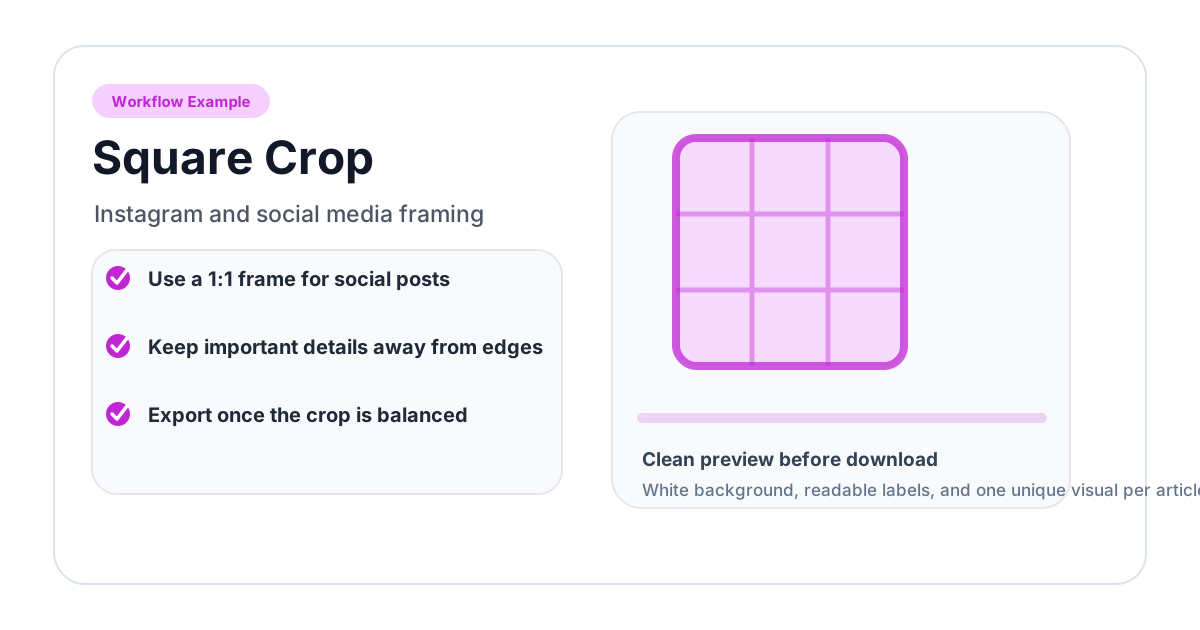
Use the rule of thirds — Divide the square into a 3×3 grid. Place key elements along the grid lines or at their intersections for a balanced composition.
-
Watch the edges — A square crop removes the sides of a landscape photo or the top/bottom of a portrait. Check that nothing important is being cut off.
-
Consistent sizing for grids — If you are preparing multiple images for an Instagram grid or product catalog, use the same square dimensions for all images to maintain a uniform look.
Converting Between Shapes
Need a different shape? Here are your options:
- Rectangle to square: Crop the rectangle to 1:1 using the Square Crop tool
- Square to circle: Use the Circle Crop tool on your square image
- Square to oval: Use the Oval Crop for an elliptical frame
- Square to rounded rectangle: Use Round Corners to soften the edges
Frequently Asked Questions
What is a 1:1 crop?
A 1:1 crop means the width and height are equal — it is a square. The term "1:1" refers to the aspect ratio. It is the standard format for Instagram grid posts and many product photo guidelines.
Should I crop to square before or after editing?
It depends on your workflow. If you are applying filters or adjustments, do those first on the full image, then square crop. This way you are editing with all the image data available, and the crop is the final step.
What if my image is too small for 1080×1080?
If your source image is smaller than 1080×1080, the square crop will be smaller too. Avoid upscaling small images as it introduces blur. Instead, use the highest resolution source available.
Can I square crop multiple images at once?
The tool processes one image at a time, but each crop takes just a few seconds. For large batches, work through them sequentially.
Will square cropping remove important parts of my photo?
It depends on the original aspect ratio. A 16:9 landscape photo will lose significant portions on the left and right when cropped to a square. That is why positioning the crop area carefully is important — put the square over the most important part of the image.
Does the square crop support transparent backgrounds?
Yes. If your source image has a transparent background (PNG), the square crop preserves it. For images without transparency (like JPG), the background within the square is whatever was in the original image.
Related image editing guides
PNG vs JPG vs WebP: Which Image Format Should You Use?
Understand the differences between PNG, JPG, and WebP image formats. Learn when to use each format for web design, social media, printing, and more.
Read guideHow to Blur an Image Online for Free (Full & Partial Blur Guide)
Learn how to blur an image online for free. Apply full blur, background blur, or blur specific areas to protect privacy or create depth effects.
Read guideHow to Flip an Image Online: Mirror Horizontally or Vertically
Learn how to flip an image horizontally or vertically online for free. Mirror any photo instantly — no software installation or signup required.
Read guide