How to Merge Images Online for Free: Side by Side, Vertical & More
Need to put two photos next to each other? Or stack several images vertically into one tall graphic? Merging images is one of the most common image editing tasks, and you do not need Photoshop to do it.
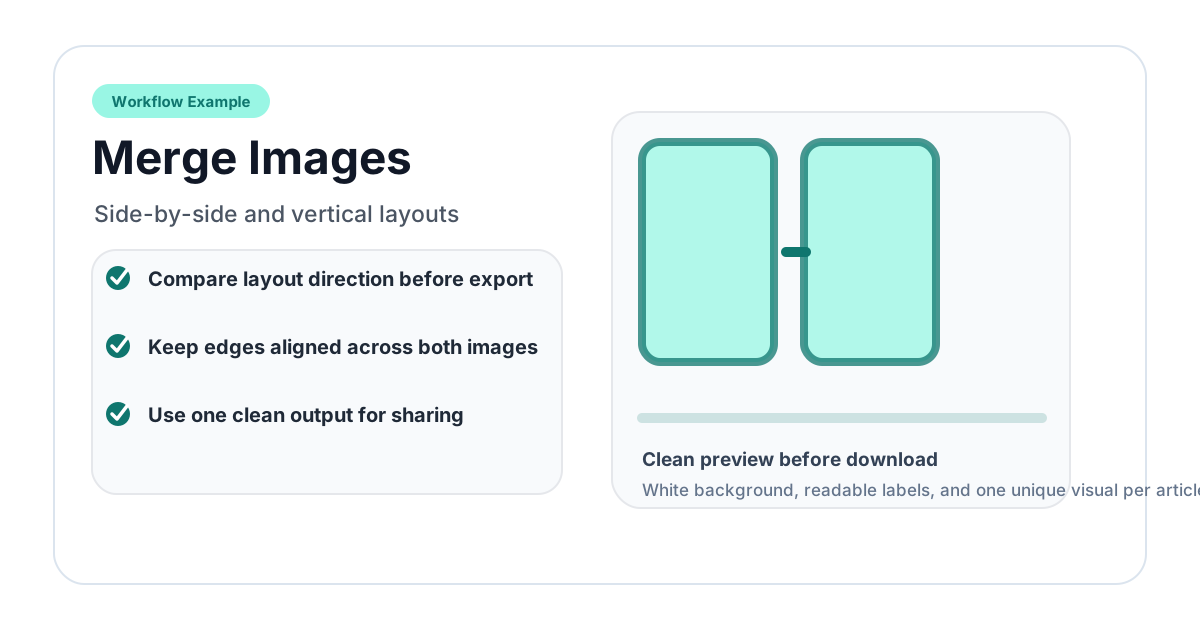
This guide covers how to merge images online using a free tool — no downloads, no accounts, no watermarks.
What Does "Merge Images" Mean?
Merging images means combining two or more separate image files into a single image. The most common layouts are:
- Side by side (horizontal) — Images placed left to right
- Vertical (stacked) — Images placed top to bottom
- Grid — Images arranged in rows and columns
The merged result is a single image file that you can save, share, or use in your projects.
How to Merge Images Online (Step-by-Step)
Step 1: Open the Merge Tool
Go to the Merge Images tool. It runs entirely in your browser — your images stay on your device.
Step 2: Upload Your Images
Click to upload or drag and drop the images you want to merge. You can add two or more images. Supported formats include JPG, PNG, and WebP.
Step 3: Choose Your Layout
Select how you want the images arranged:
- Horizontal — Images appear side by side from left to right
- Vertical — Images are stacked from top to bottom
Step 4: Adjust Settings
Fine-tune the merged image:
- Spacing — Add gaps between images or set them edge-to-edge
- Alignment — Align images to the top, center, or bottom (for horizontal layout) or left, center, right (for vertical layout)
- Resize — Optionally resize images to match widths or heights
Step 5: Download
Click download to save your merged image. The output preserves the quality of your original images.
Common Use Cases for Merging Images
Before and After Comparisons
Place the "before" image on the left and the "after" image on the right. This is widely used for:
- Photo editing showcases
- Home renovation progress
- Fitness transformations
- Product improvements
Social Media Collages
Merge multiple photos into a single image for Instagram, Facebook, or Twitter posts. A horizontal merge works well for Instagram carousels, while a vertical merge is great for Pinterest pins.
Product Comparisons
E-commerce sellers often merge product images side by side to show different colors, sizes, or versions of the same item.
Documentation and Tutorials
When creating tutorials or documentation, merging screenshots side by side shows a workflow progression in a single image.
Moodboards and Inspiration Boards
Designers merge reference images, color swatches, and typography samples into a single moodboard image.
Tips for Better Image Merging
- Use images with similar dimensions — When merging images of very different sizes, one may appear much larger than the other. Crop or resize them to similar dimensions first
- Match the color tone — Images with drastically different lighting or color temperatures can look jarring when placed together
- Consider the reading direction — For before/after comparisons, place the earlier image on the left (matching the natural left-to-right reading direction)
- Add spacing for clarity — A small gap between images helps viewers distinguish where one image ends and the next begins
- Keep file sizes reasonable — Merging many large images creates a very large output file. Consider resizing inputs if the merged image will be used on the web
Related Image Tools
Need to do something else with your images? Check out these tools:
- Circle Crop — Crop images into a perfect circle
- Oval Crop — Crop images into an ellipse shape
- Rotate Image — Rotate images by any angle
- Flip Image — Mirror images horizontally or vertically
- Square Crop — Crop images into a perfect square
Frequently Asked Questions
How many images can I merge at once?
The tool supports merging multiple images. The practical limit depends on your device's memory, but merging 2 to 10 images works smoothly on most devices.
Can I merge images of different sizes?
Yes. The tool handles images of different dimensions. You can choose to resize them to match widths (for vertical layout) or heights (for horizontal layout) for a clean result.
What format is the output?
The merged image is saved as a PNG or JPG file, depending on the tool's settings and whether transparency is needed.
Are my images uploaded to a server?
No. The merge process happens entirely in your browser. Your images are never sent to any server, ensuring your privacy.
Can I add text or borders between merged images?
The current tool focuses on clean image merging. For adding text or decorative borders, you would need to use the merged image in a separate image editor.
Does it work on mobile?
Yes. The merge tool is fully responsive and works on phones and tablets. You can upload images from your camera roll and merge them directly in your mobile browser.
Related image editing guides
PNG vs JPG vs WebP: Which Image Format Should You Use?
Understand the differences between PNG, JPG, and WebP image formats. Learn when to use each format for web design, social media, printing, and more.
Read guideHow to Blur an Image Online for Free (Full & Partial Blur Guide)
Learn how to blur an image online for free. Apply full blur, background blur, or blur specific areas to protect privacy or create depth effects.
Read guideHow to Flip an Image Online: Mirror Horizontally or Vertically
Learn how to flip an image horizontally or vertically online for free. Mirror any photo instantly — no software installation or signup required.
Read guide